
RCS – Text-only template
Introduction
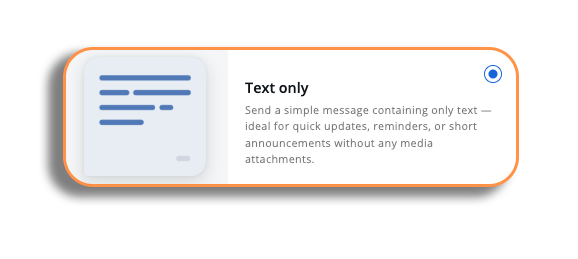
Let’s go through the process of creating a text-only RCS message. Select the text-only option in RCS template creation, and you will be on the template creation page.
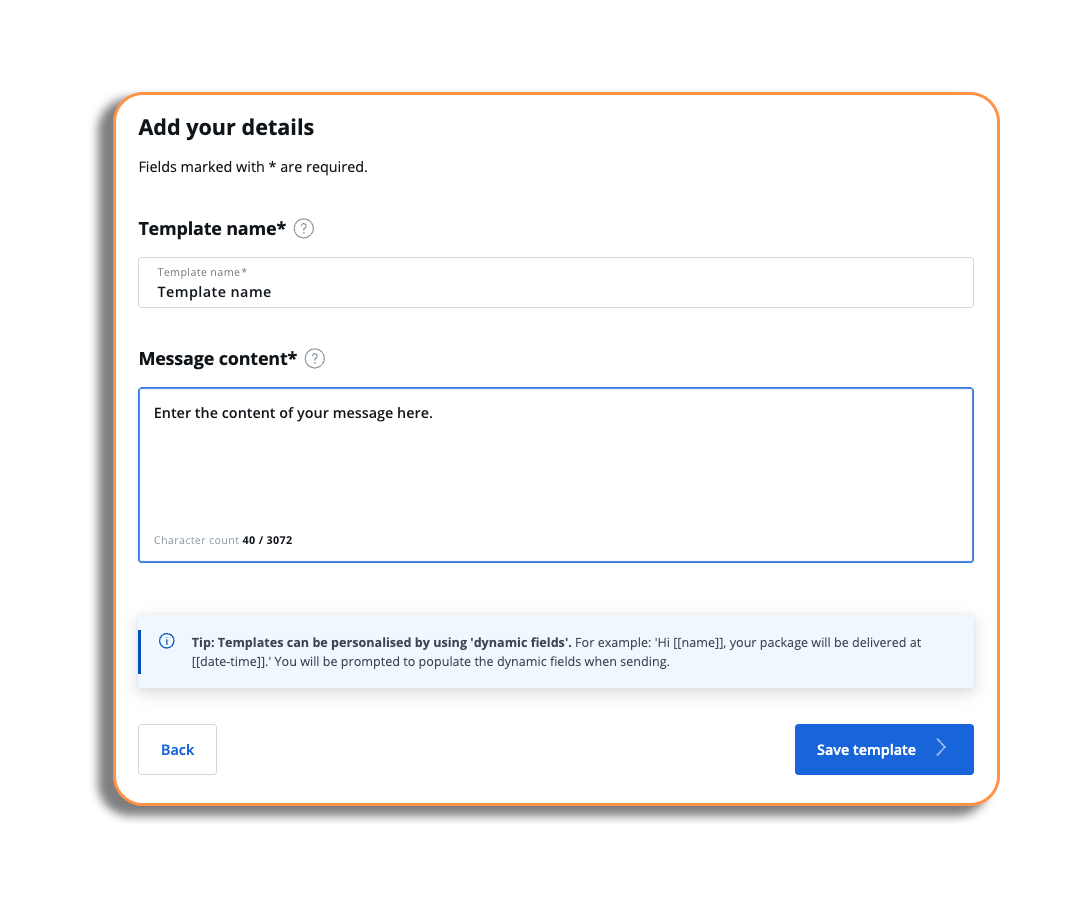
Add your details
There are two fields:
- Template name: The title of your template, which will appear in the library
- Message content: The content of your message
- Please note that in the message content, you will be able to add some dynamic fields similar to the SMS templates.
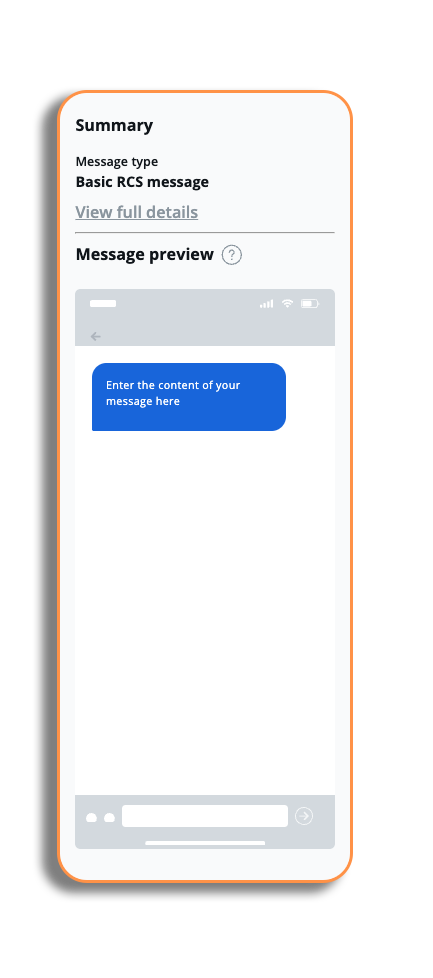
On the right of the details fields, you will have a summary:
- Message type: this will show you which type of RCS message you are going to send when using the template.
- View full details: Explains what a Basic or Single RCS message is, the character count and any warnings with usage (variable fields use).
- Fallback: Selecting this will show you a preview of the message as an RCS message and as an SMS message (fallback).
Character counts
A basic RCS message is a text message up to 160 characters.
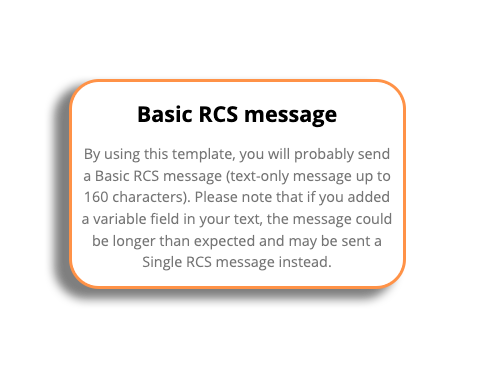
If we add characters that exceed the 160 stated above (including variable fields), the message summary will change to match the character length; in this case, the message has now become a Single RCS message (text only, media & variable fields that exceed a 1000 character limit).
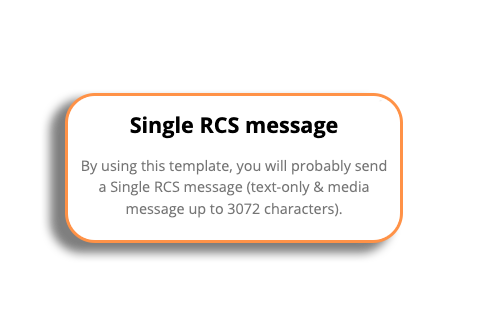
SMS Fallback
Please be aware: If you decide that you want to remove SMS fallback, you can do this by contacting your account manager.
The SMS fallback will be triggered when a customer cannot receive an Text template, so they will receive an SMS instead.
In the fallback, the user will see a URL; this will redirect the recipients to a webpage where they will be able to view the RCS content.
You can use a VMN or Sender ID fallback. Please be aware you will need to follow local regulations regarding sender ID registration — our support or sales team will be able to provide assistance with this
You will be able to personalise the message content of your fallback message (there will be an example in the text box).
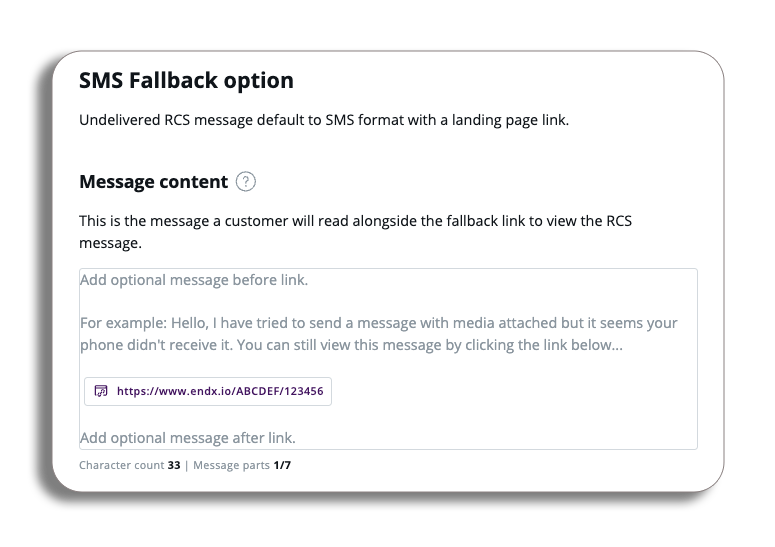
Enter your message; you will be able to see the character count and message parts and you will also be able to add dynamic fields to your messages as well.
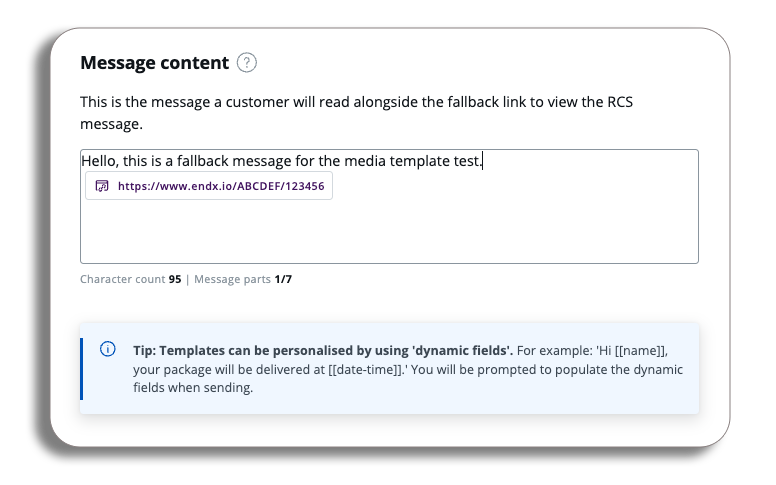
Once you have created your message content, we can look at adding a Media link.
Media Link
The media link will be the URL that the user will see and select in the SMS fallback message to access the rich content (image, etc).
You will be able to customise your media link with a branded URL; this can be added in the branded URL field. You will get a preview example of the branded URL to review.
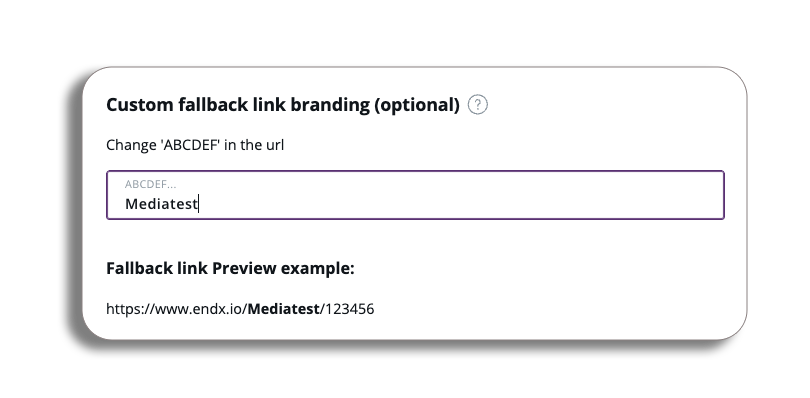
Please be aware: You can only enter the name of your brand.
To review the SMS fallback message, you just need to select the preview button at the bottom of your message preview and switch it to fallback.
Once you are happy with the Text message and your SMS fallback message, select Save and proceed.
You will now be in the template library, where you will see the template you have created.
Editing an existing template
Selecting the three dots on the template will give you the following options for the template you have created:
- Edit: This will take you to the text template editor where you will be able to amend the template name, the content and the sender. Once you are happy with your updates, you can save the updated template, which will take you back to the library.
- Copy: Replicates the message and takes you to the template editor to make any amendments to the copy message.
- Different Account: Selecting a different account will give you the option to select the account to copy the message to. The list of available different accounts is populated with the accounts your user has access to.
- Tag: You can manage the tags linked to your template and use these tags to browse the templates via APIs.
- Delete: This will let you delete your template. PLEASE BE AWARE: when you select delete, you will get a pop-up with the following information: ‘Your template will be deleted and will no longer be accessible. Any in-progress or scheduled messages will not be affected.’
- Lock: This will restrict access to edit or delete for your message template; to be able to use these actions, it will need to be unlocked.
- Copy template ID: You will see the template ID in order to use it via APIs.