
RCS – Media template
Getting started
On the Create Message Template page, select the RCS channel, your reason for sending and then select the media option.
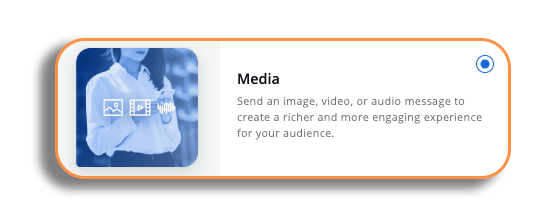
Please be aware: the RCS channel is only available for sending via API.
RCS media template editor
Creating an RCS media template comprises two steps: the media step and the fallback step.
Please be aware: The fallback step will only be viewable if you have SMS fallback enabled; if this is not enabled, you will only see the Media step.
Media
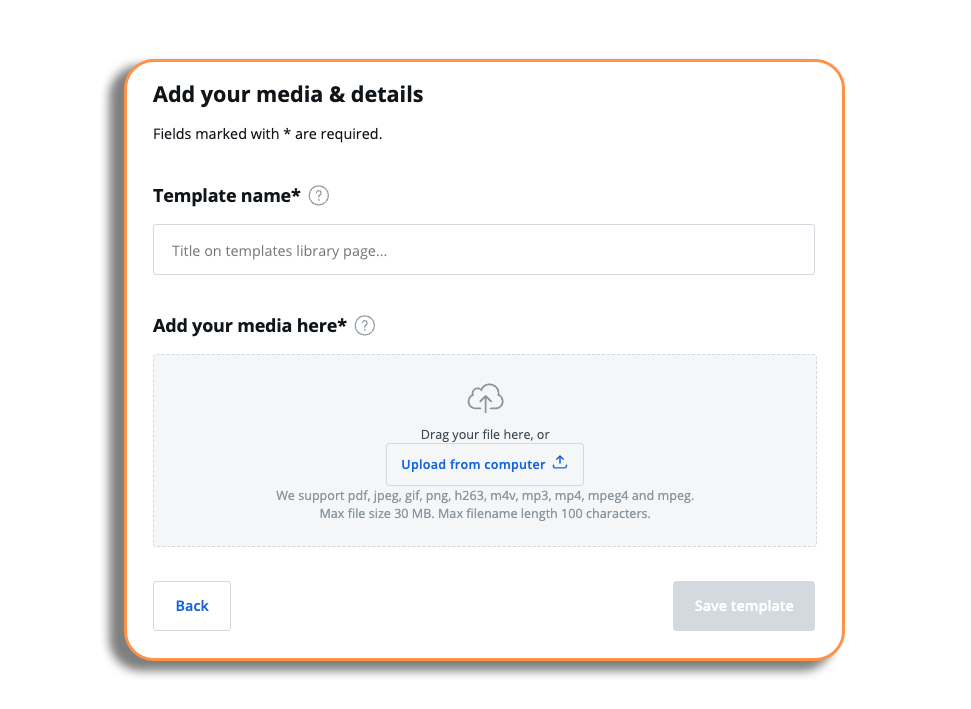
Template name: Add your template name in the template name field.
Adding your media here: You will be able to add several file types as media to your RCS media template file; they are:
- Jpeg
- Png
- H623
- M4v
- Mp3
- Mp4
- Mpeg4
- And many more….
Please be aware: We are aligned with the standards for Google and the networks in terms of files you can upload.
Uploading a file
Let’s take a look at uploading a file. You can drag and drop your file or upload from the computer by selecting the button.
Once the file has uploaded, you will have confirmation of this; you will also see the name of your file and the file size.
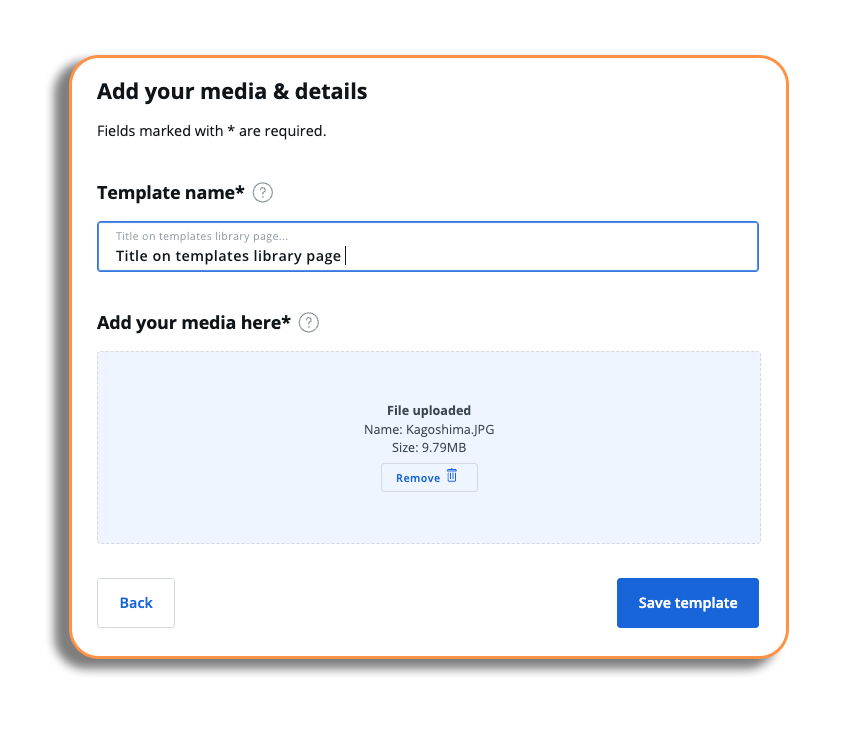
The preview will also be visible of the file on the left-hand side and will show the file you have uploaded.
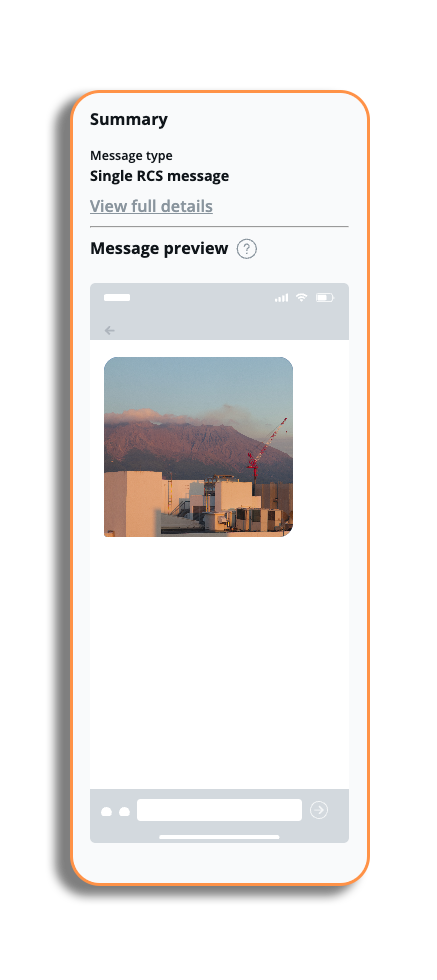
Once you are happy with your RCS media message, you can press the save button, and you will have created your message and will be back at the message template library.
If you have SMS fallback setup you will have the Next button, which will take you to the setup process.
SMS Fallback
Please be aware: If you decide that you want to remove SMS fallback, you can do this by contacting your account manager.
The SMS fallback will be triggered when a customer cannot receive an RCS media template, so they will receive an SMS instead.
In the fallback, the user will see a URL; this will redirect the recipients to a webpage where they will be able to view the RCS content.
You can use a VMN or Sender ID fallback. Please be aware you will need to follow local regulations regarding sender ID registration — our support or sales team will be able to provide assistance with this
You will be able to personalise the message content of your fallback message (there will be an example in the text box).
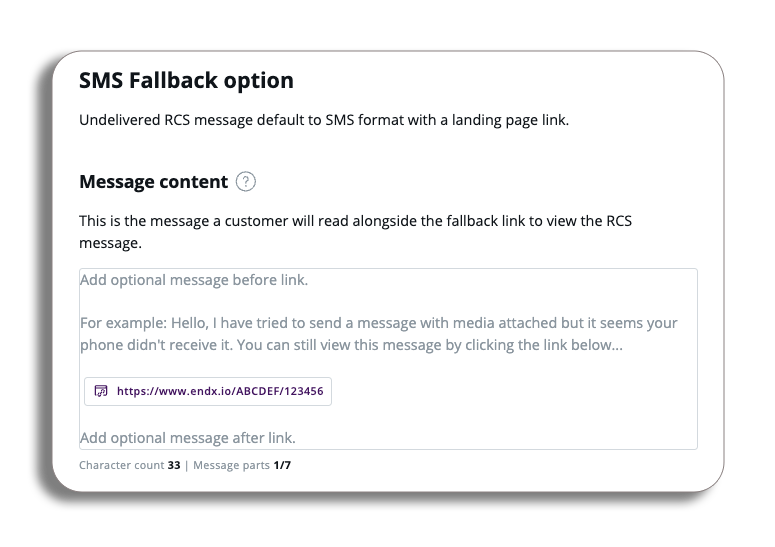
Enter your message; you will be able to see the character count and message parts and you will also be able to add dynamic fields to your messages as well.
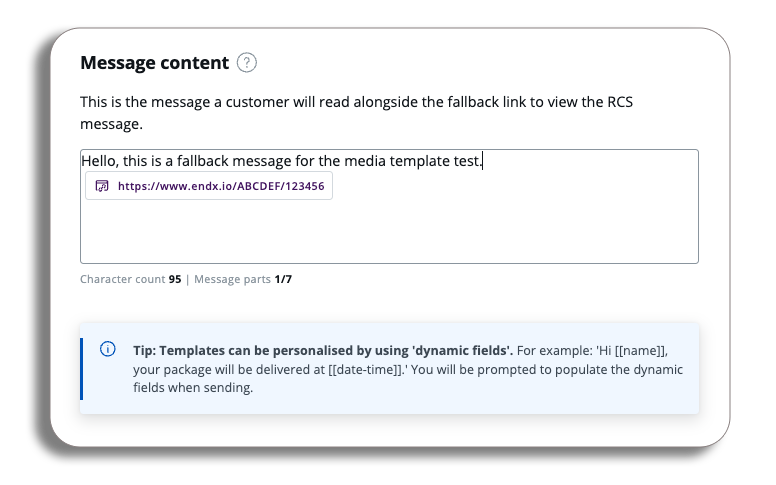
Once you have created your message content, we can look at adding a Media link.
Media Link
The media link will be the URL that the user will see and select in the SMS fallback message to access the rich content (image, etc).
You will be able to customise your media link with a branded URL; this can be added in the branded URL field. You will get a preview example of the branded URL to review.
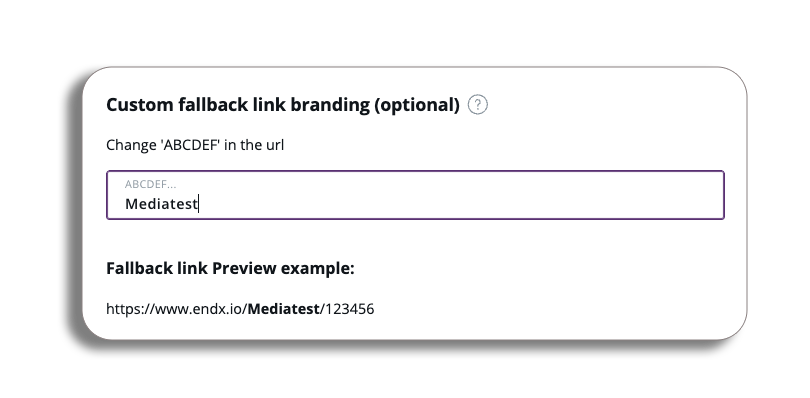
Please be aware: You can only enter the name of your brand.
To review the SMS fallback message, you just need to select the preview button at the bottom of your message preview and switch it to fallback.
Once you are happy with the RCS Media message and your SMS fallback message, select Save and proceed.